Stuck trying to download an app that is not available in your region? That is one of the most common headaches for iPhone users, especially if you just moved to the US or want access to region-specific apps. The fix is simple. Update your country settings in your Apple ID, and everything unlocks.
If you are searching for how to change apple id country, here is the quick answer.
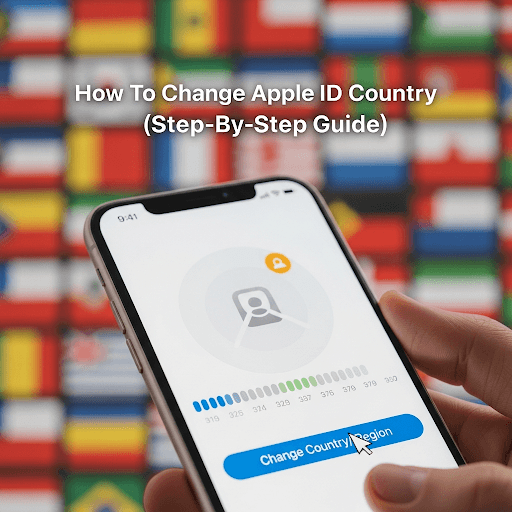
To change your Apple ID country, go to Settings, tap your name, open Media and Purchases, select View Account, tap Country or Region, choose United States, and enter valid billing details.
Now let’s break it down properly so you do not run into errors.
Why Your Apple ID Country Matters
Your Apple ID country controls your entire App Store experience. It decides:
- Which apps you can download
- What subscriptions are available
- How you are billed
- Which payment methods work
In the US App Store, you often get earlier access to apps, exclusive services, and better compatibility with US payment systems.
If your region is wrong, things start breaking. Apps disappear, payments fail, and subscriptions stop working.
Requirements Before You Change Apple ID Country
Most people skip this part and get stuck. You cannot switch countries unless your account is clean.
Make sure you complete this checklist first:
- Cancel all active subscriptions like Apple Music or iCloud
- Wait until subscriptions fully expire
- Spend your remaining Apple ID balance
- Leave any Family Sharing group
- Prepare a valid US billing address
Here is a quick view:
| Requirement | Why It Matters |
| No balance | Apple blocks region change if money is left |
| No subscriptions | Active plans lock your country |
| Not in Family Sharing | Group settings prevent changes |
| Valid US details | Required for billing and verification |
How To Change Apple ID Country On iPhone Or iPad
This is the easiest and fastest method.
Step 1 Open Settings
Open the Settings app and tap your name at the top.
Step 2 Go To Media And Purchases
Tap “Media and Purchases” and then tap “View Account.” Sign in if asked.
Step 3 Tap Country Or Region
Select “Country/Region” and tap “Change Country or Region.”
Step 4 Select United States
Scroll and choose United States from the list.
Step 5 Agree To Terms
Tap Agree to accept the terms and conditions.
Step 6 Enter US Billing Information
Add your billing details. If you do not want to add a card, select “None.”
Use a proper US format:
- Street: 123 Main Street
- City: New York
- State: NY
- ZIP Code: 10001
- Phone: 2125551234
Step 7 Confirm The Change
Tap Next and your Apple ID country will update instantly.
This completes the process of how to change apple id country on iPhone.
How To Change Apple ID Country On Desktop
If your phone method is not working, try this.
Step 1 Sign In To Apple ID
Go to the Apple ID account page and log in.
Step 2 Open Personal Information
Click on Personal Information and find Country or Region.
Step 3 Change Country
Select United States.
Step 4 Add Billing Details
Enter your US payment method and address.
Step 5 Save Changes
Click Save to update your account.
This method works well if you are troubleshooting or using a shared device.
Common Errors And Quick Fixes
Even if you follow all steps, you might hit some issues. Here is how to fix them fast.
You Still Have Apple ID Balance
Even a small amount can block the change.
Fix:
- Spend the balance completely
- Contact support if a few cents remain
Active Subscription Error
Subscriptions must expire before switching regions.
Fix:
- Cancel subscriptions
- Wait until the billing cycle ends
Payment Method Not Valid
Your card must match the new region.
Fix:
- Use a US-based payment method
- Select “None” if allowed
Family Sharing Restriction
You cannot change region while in a group.
Fix:
- Leave Family Sharing
- Try again
What Happens After You Change Country
Once your region is updated, your account adjusts immediately.
| Feature | Result |
| App Store | Switches to US apps |
| Currency | Changes to USD |
| Subscriptions | May need to be reactivated |
| Payments | Must match US billing |
Your data like photos, contacts, and files remains safe.
Pro Tips To Avoid Problems
If you want a smooth experience, follow these tips:
- Double check your ZIP code and state
- Use real and consistent billing details
- Avoid switching regions too often
- Keep your account secure
These small steps make a big difference.
Is It Safe To Change Apple ID Country
Yes, it is completely safe. You are only updating your account settings.
Many users do this when moving to the US or accessing region-based apps. Platforms like techtribemag often explain these everyday tech fixes in a simple way, helping users avoid common mistakes.
How Often Can You Change Apple ID Country
There is no strict limit, but frequent changes can trigger security checks.
If you switch too often, your account may get flagged. It is best to change only when necessary.
Frequently Asked Questions
Can I Change Apple ID Country Without A Credit Card
Yes, you can select “None” as your payment method in many cases, especially for free apps.
Will I Lose My Apps
No, but some apps may not be available in your new region.
Can I Switch Back Later
Yes, you can switch back anytime using the same steps.
Does This Affect iCloud Data
No, your iCloud data remains unchanged.
Final Thoughts
Changing your Apple ID country might seem confusing at first, but it is actually a simple process when you follow the right steps. The key is preparing your account, using valid details, and avoiding common mistakes.
If you came here looking for how to change apple id country, you now have a complete and practical guide that covers everything from start to finish. Take your time, follow each step carefully, and you will have your account set to the US without any issues.
For More Info Visit:- techtribemag.com